Pixelate an Image with Mosaic | PhotoCraft
Pixelate an image with Mosaic in PhotoCraft. Set Cell Size, preview the blocks and export a PNG. Tested steps and clear limits: this is not secure redaction.
Turn an image into visible square blocks
To pixelate an image, this workflow uses the editor's Mosaic filter, which replaces fine detail with larger color cells. It is useful for a deliberate blocky visual style. It is not the same as lowering JPEG quality, shrinking the browser view or applying a soft blur. The operation below changes the document's pixels and produces a downloaded PNG.
We tested Filter → Pixelate → Mosaic in the pinned browser editor on a 320 × 320 gradient PNG. With Cell Size set to 20, the exported image contained uniform 20-pixel blocks and differed from the unfiltered input. That is evidence for a full-image effect on a small raster layer. It is not a certification of secure redaction, automatic face detection or irreversible removal of sensitive information.
Prepare the editor and a safe copy
Open the PhotoCraft homepage editor and wait for its menus and image canvas, not just the surrounding page. This guide uses the pinned v0.15.1 web build, checked on 24 October 2026. Its menus remain English in every site language. Use a desktop-sized workspace and a small, non-sensitive PNG first; our 320 × 320 sample is a suitable practice input. Keep the original separately.
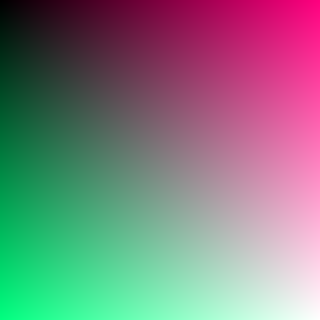
Choose File → Open inside the application. A browser tab displaying the image alone is not an editable document. Click in the editor before using shortcuts; browser shortcuts can intercept keys. Use the visible application menu when that happens. The PNG import and export tutorial explains the basic file flow.
Apply Mosaic to the image layer
- Open the small image copy. In Layers, select the image's pixel layer and confirm it is visible. Our test used the single raster layer created when opening a PNG, not a smart object, text layer or complex PSD group.
- Choose Filter → Pixelate → Mosaic. The Mosaic dialog should display Cell Size and a Preview option. This live dialog, rather than the submenu name alone, is the control used in the test.
- Set Cell Size to 20 for the 320 × 320 example. Inspect the preview. Larger cells make larger blocks; a value that is obvious on this sample may look tiny on a much larger photograph.
- Keep Preview enabled while comparing the block pattern, then press OK to apply it. Confirm that the canvas remains blocky after the dialog closes. Cancelling the dialog should not be treated as a completed edit.
- If the effect is unsuitable, choose Edit → Undo and adjust again. Start from the unfiltered input when comparing strengths; repeated filtering can produce a different result from one pass with a different setting.
The Cell Size number is measured in image pixels, while browser zoom and fit-to-screen change how those pixels appear on your monitor. Judge the exported file at a useful viewing size, not only a small preview. Avoid promising a universal cell size that works for every subject or delivery resolution.
Export the effect and check real pixels
Use File → Export → Quick Export as PNG and locate the completed download. Give it a separate name such as sample-mosaic-20.png. Open it outside the editor and inspect both the block pattern and dimensions. Our test retained 320 × 320 dimensions; the filter did not create a small thumbnail that was then enlarged by the webpage.
A useful check is to compare a smooth gradient or an edge before and after applying the effect. The source contains fine variation; the output shows a series of flat square cells. We checked every exported pixel against the expected uniform-cell property instead of relying on a screenshot. For your own picture, confirm that the intended region changed and unrelated details still look acceptable.
This guide covers the whole image. A selected-area effect needs a separate selection test, including the boundary and pixels outside it. Do not assume a face is automatically located or that a selected object follows later resizing. Check the final delivered picture, because a visible preview can be scaled differently from the downloaded file.
Pixelating an image FAQ
Is this safe for hiding passwords or faces?
Do not rely on pixelation alone for confidential material. Blocked text or faces may retain recognizable information, and originals or metadata can reveal more. Use an approved redaction workflow and inspect the delivered file if actual removal is required; this page demonstrates a visual effect only.
Why does the effect look weak?
Check the document dimensions, Cell Size and current zoom. Twenty pixels occupy a smaller fraction of a large photo than of our small sample. Also check that OK was pressed and that the download is new. Do not repeatedly increase the value without checking the actual output.
Does Mosaic make a pixel-art drawing?
It creates a blocky rendering of an existing picture. It does not choose a limited palette, redraw edges by hand or guarantee a game-ready sprite. Those artistic requirements need additional work and their own inspection.
Limits, saving and troubleshooting
The checked workflow uses small PNG images in Chromium, not a benchmark for large photographs, every browser or complex PSDs. Local pixel editing does not mean anonymous or offline browsing: the website also makes hosting and measurement requests. Read the privacy policy rather than treating this guide as a privacy guarantee. No account is needed for this editor workflow.
There is no browser autosave or crash recovery in this pinned build. Download your result before refreshing, changing language or switching renderer. Save a separate working checkpoint if you need to continue editing, and check reopening separately with the PSD guide. If startup fails, use the renderer guide; if export looks stale, check the active document and actual download time before repeating an edit.
Other image tasks
Use the image flipper guide for mirroring, the image combiner guide for a two-layer layout, pixelate image for Mosaic, or the manual image splitter guide for separate cropped files. Each uses the same editor, with a different result to verify.