Image Combiner: Join Two Images Side by Side
Combine two images with layers in PhotoCraft. Follow a tested 640 × 320 side-by-side example, export one PNG and check placement, dimensions and limits.
Combine two pictures into one downloaded image
This image combiner workflow places two images in one PhotoCraft document and exports their visible composite as a single PNG. The worked example is a side-by-side pair of equal 320 × 320 inputs on a 640 × 320 canvas. It uses layers and explicit placement rather than automatic collage templates, panorama stitching or a batch uploader.
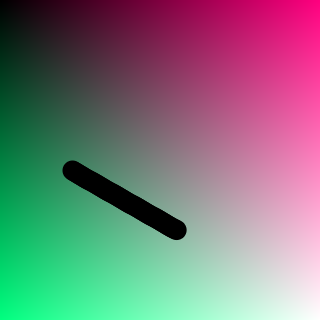
In our browser test, the left picture was a blocky gradient and the right picture a gradient with an obvious black mark. After export, the left 320 × 320 region matched the first source pixel for pixel, and the right region matched the second source. This proves a small two-layer layout and download, not automatic alignment of arbitrary photos or lossless handling of every format and profile.
Prepare the editor and a safe copy
Open the PhotoCraft homepage editor and wait for its menus and image canvas, not just the surrounding page. This guide uses the pinned v0.15.1 web build, checked on 24 October 2026. Its menus remain English in every site language. Use a desktop-sized workspace and a small, non-sensitive PNG first; our 320 × 320 sample is a suitable practice input. Keep the original separately.
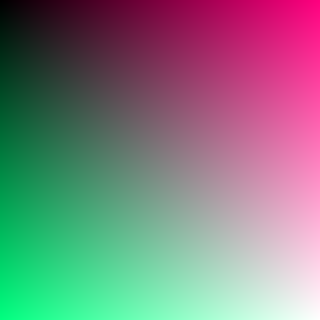
Choose File → Open inside the application. A browser tab displaying the image alone is not an editable document. Click in the editor before using shortcuts; browser shortcuts can intercept keys. Use the visible application menu when that happens. The PNG import and export tutorial explains the basic file flow.
Plan the canvas before combining
For two equal pictures placed horizontally with no gap, add their widths and keep their height: 320 + 320 gives 640 × 320. For a vertical arrangement the analogous target is 320 × 640. The detailed test here covers the horizontal case. Different dimensions, scaling or spacing require a deliberate layout decision, not simply adding files and hoping they fit.
Keep both originals and identify which belongs on the left. If the second image is opaque and occupies the entire first image's canvas, it initially covers the first. That does not mean the first input was deleted. Look at the Layers panel before trying to import it again. A useful second input is the existing edited sample PNG, whose black mark makes the two sources easy to distinguish.
Build the two-layer composition
- Open the first 320 × 320 PNG with File → Open. It becomes the base document and its original raster layer.
- Use File → Place Embedded to choose the second PNG. In the tested build it enters the current document as another layer with transform handles, rather than a second independent document tab. Press Enter or use the visible checkmark to confirm placement.
- Open Image → Canvas Size. Set Width to 640 Pixels and leave Height at 320 Pixels. Keep Relative off. Select the left-center anchor so the existing content stays at the left while space is added to the right, then confirm OK.
- Select the second layer in Layers. In Properties → Transform, set its X position to 320 and Y to 0, keeping its width and height at 320. The first source should occupy the left half, and the second should occupy the right half without covering it.
- Inspect the join and both outer edges. Check that neither picture is clipped and no unintended strip remains. If your inputs differ from the sample sizes, do not copy these coordinates without recalculating the layout.
Canvas Size extends the document area; it is different from Image Size, which can rescale content. Use the measured dimensions of your own inputs. If a placement is still in transform mode, finish or cancel it before changing other controls. Keep the layer names distinct enough to know which picture is moving.
Export and check the combined picture
Choose File → Export → Quick Export as PNG. Locate the downloaded file and rename it, for example two-images-side-by-side.png. Open it in a separate viewer and confirm the 640 × 320 dimensions for this example. Seeing two layers in the editor is not sufficient: the PNG must contain both pictures in their expected positions.
Inspect the center seam, blank areas, transparency and any text in each source. Our equal-sized test did not resize either input. Scaling a large or small image to fit a different layout can change its pixels and legibility. If later editing matters, keep a separate working document and check its reopening; the PNG is the rendered composite, not the layer stack.
Image combiner FAQ
Why can I see only the second picture?
An opaque second layer can cover the first at the same position. Confirm the canvas was enlarged, the second layer is selected and its X position is correct. Opening the second file with Open may instead create another tab; use Place Embedded for the tested workflow.
Can this automatically stitch a panorama?
This page does not establish panorama alignment, blending or automatic collage generation. It covers manual placement of two small images. An overlapping composition needs its own inspection of edges and the required blending behavior.
Is the result still editable?
The PNG stores the visible result. Keep a separately saved working document if you need independent layers, and verify it reopens as required. Do not infer complete Photoshop compatibility from a successful two-image PNG export.
Limits, saving and troubleshooting
The checked workflow uses small PNG images in Chromium, not a benchmark for large photographs, every browser or complex PSDs. Local pixel editing does not mean anonymous or offline browsing: the website also makes hosting and measurement requests. Read the privacy policy rather than treating this guide as a privacy guarantee. No account is needed for this editor workflow.
There is no browser autosave or crash recovery in this pinned build. Download your result before refreshing, changing language or switching renderer. Save a separate working checkpoint if you need to continue editing, and check reopening separately with the PSD guide. If startup fails, use the renderer guide; if export looks stale, check the active document and actual download time before repeating an edit.
Other image tasks
Use the image flipper guide for mirroring, the image combiner guide for a two-layer layout, pixelate image for Mosaic, or the manual image splitter guide for separate cropped files. Each uses the same editor, with a different result to verify.