Save and back up your browser edits
Build a reliable checkpoint and handoff workflow for the PhotoCraft browser editor.
Understand what a browser session does not save
The pinned PhotoCraft v0.12.0 browser release has no autosave or crash recovery. Your work can exist only in the running tab until you explicitly save or export a file. Leaving the page, reloading, changing the renderer or a browser crash can end that session. The website does not keep a server-side image copy that a maintainer can restore for you.
A navigation warning helps prevent accidental departures, but it is not a recovery system. It cannot guarantee protection against a process crash, device shutdown or every browser action. Treat a downloaded and verified file as a checkpoint. Treat the visible canvas and its undo history as temporary working state. This distinction matters even for a small edit that appears to take only a minute.
Set up a project folder before editing
Create a folder for the task and separate originals, working checkpoints and delivery images. Copy the source into the originals folder and leave that copy alone. A straightforward naming pattern is a short project name, a sequence number and a role: for example, poster-001-working.psd and poster-001-reference.png. These are example names, not a format the editor automatically enforces.
Avoid including client email addresses, access tokens or other sensitive information in filenames. Filenames may later appear in screenshots, bug reports or shared folders. The browser editor does not upload them to this website, but your own sharing workflow can still expose them. Make the names descriptive enough to distinguish versions without embedding unnecessary personal information.
Make the first checkpoint early
After importing the source and making a small test edit, use the editor's Save As command to download a working file. Locate it on disk and check that its extension and timestamp match what you intended. Save an accompanying PNG as a visible reference. Before doing extensive work, reopen a copy of the saved document and confirm that it preserves the result you need.
For a known example, use the synthetic PNG and follow the complete editing tutorial. The sample PSD and round-trip record demonstrate one simple save-and-reopen workflow. They do not guarantee that every feature in your own file survives. A checkpoint is useful only when it contains the state you expect.

Save at meaningful milestones
Choose checkpoints around actions whose loss would be costly: completing an import, finishing a substantial edit, reorganizing a document or preparing a handoff. Use a new sequence number instead of assuming a browser save overwrites the previous download. Browsers commonly retain multiple files with similar names. Check the actual folder when a download finishes and identify which file is the current checkpoint.
Do not set a universal time interval that gives a false sense of safety. The right frequency depends on the work and how easily it can be repeated. A long operation deserves a checkpoint immediately beforehand even if the previous save was recent. An editor that remains open all day still needs explicit files on disk; a tab's continued presence is not evidence that its state will survive.
Keep an editable file and a visual reference
Save an editable document for continued work and export a PNG for visual comparison. These files answer different questions. The working document is intended to preserve editing state, subject to the format limitations of this early-alpha version. The PNG records an appearance you can inspect in another viewer. Neither should silently replace the other in your delivery process.
When reopening a checkpoint, compare the resulting image with the saved reference and inspect the structure you need to edit. A document may retain its visible composite while changing a feature you expected to remain editable. The PSD guide explains the difference. If a recipient requires Photoshop editing, include that application in the acceptance check; our small PhotoCraft round trip does not establish Photoshop compatibility.
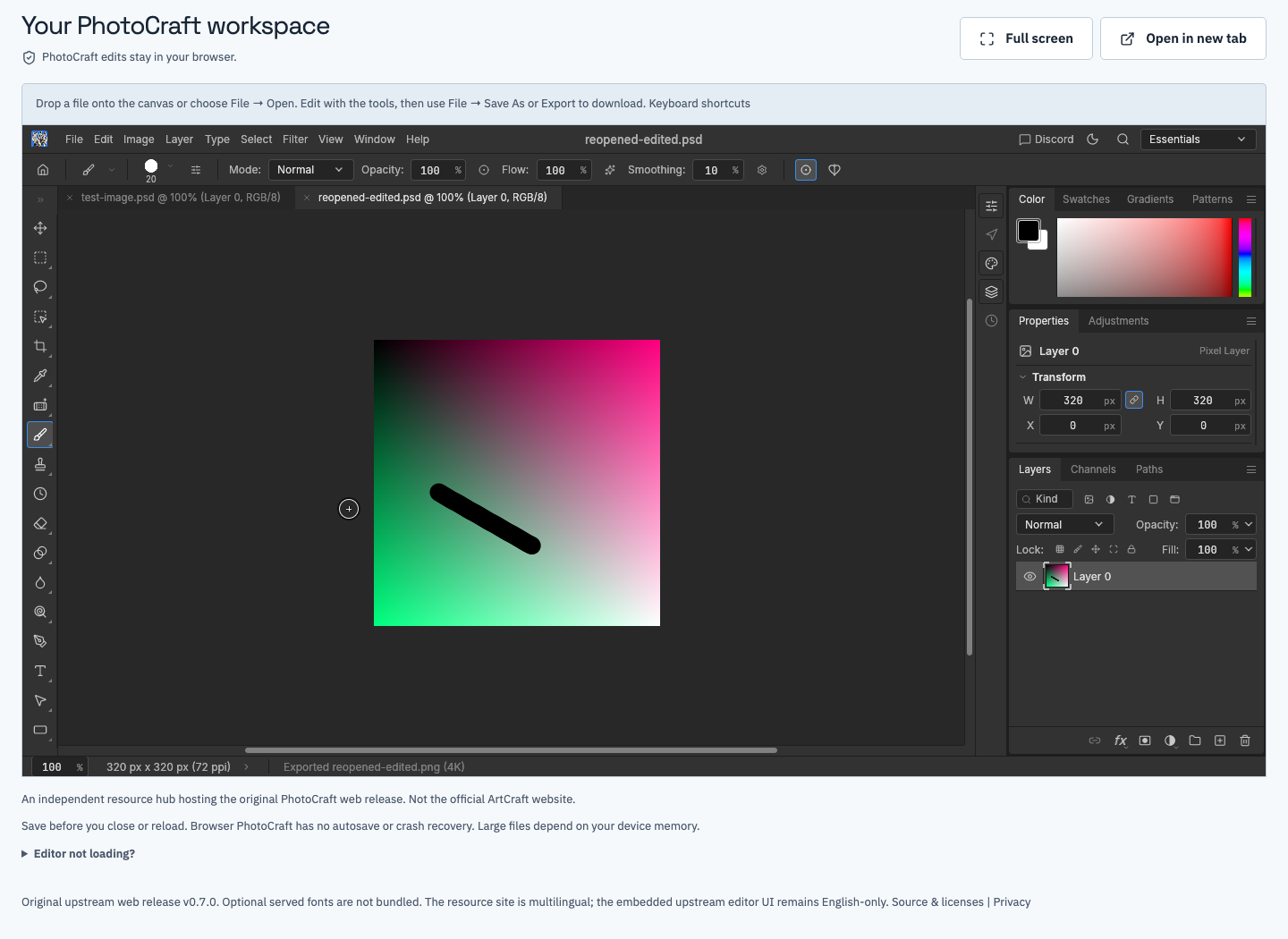
Reopening a checkpoint is part of saving it reliably, not an optional final flourish.
Before switching renderers or opening help
Renderer selection restarts the embedded editor and can discard unsaved work. Save and inspect a checkpoint before choosing WebGL2, CPU canvas or the default renderer. The site's confirmation prompt is a last reminder, not a substitute for this step. Record the currently selected renderer if you are diagnosing a problem so you can explain what changed between attempts.
Support links can open a separate tab while an editing session is active. Check which tab contains your live document before closing anything. Use the original editor tab when you return; opening a fresh homepage creates a different session rather than reconnecting to an unsaved document. Changing the website language also navigates the page, so save before switching languages during an edit.
Verify that a backup is really independent
A second document tab inside the same application is not an independent backup. A saved file on disk is more durable, but a second copy on the same device can still be lost with that device. For important work, use your normal trusted backup destination after the download. This website does not provide a cloud backup or synchronization service.
Check a backup by opening a copy, not by trusting its filename or size alone. Confirm that it is the intended version, that the visible changes are present and that required editing features remain usable. Keep the original checkpoint untouched while performing this check. If you discover a problem, the previous known-good version should still be available for comparison.
Respond calmly when something goes wrong
If the editor still responds, download a checkpoint and reference image before trying to repair the environment. If it does not respond, inspect your downloads folder for the latest completed files. Do not rename an older file as though it were a newly recovered version. Document what was saved and what existed only in memory so you know which work must be repeated.
Use the troubleshooting guide for a fresh test with a small sample. A browser history entry, screenshot or cached webpage cannot reconstruct the complete editable state. We cannot recover images from a server because the editor has no image-upload or cloud-document endpoint. Keep any successful downloads before clearing site data or reinstalling a browser.
A closing checklist you can reuse
Before ending a session, confirm four things: the untouched source still exists, the latest working checkpoint is on disk, a reference PNG shows the intended result, and a copy of the checkpoint reopens successfully. For a handoff, include the version used and any known limitations. Keep the files until the recipient confirms receipt and usability.
This routine adds a small amount of checking at the points where it matters most. It does not turn an early-alpha editor into a guaranteed recovery system. It gives you explicit, inspectable files instead of relying on a live tab, and makes it possible to explain exactly what was delivered when another person continues the work.