PhotoCraft PSD and PSB support: practical limits
Understand PhotoCraft PSD/PSB reading, layered saving and fidelity limits. Learn how to test a document safely before exchanging it with Photoshop.
What we tested
This guide separates a small reproducible PSD round trip from the much larger question of Photoshop compatibility. Our test uses the unmodified PhotoCraft v0.12.0 browser release, Chromium and a synthetic 320 × 320 PNG. We open the image, paint a visible stroke, export a PNG, save a PSD, reopen that PSD and export another PNG. The comparison checks the two exported images pixel by pixel. It does not open the document in Photoshop or exercise a professional layered design.
The downloadable evidence belongs to that specific workflow. A successful result means the edited appearance survived this save-and-reopen operation in PhotoCraft. It does not establish that text stays editable, that effects retain their original settings or that another program interprets the file in the same way. Keep these questions separate when deciding whether a document is safe to hand off.
Download the sample and keep an untouched original
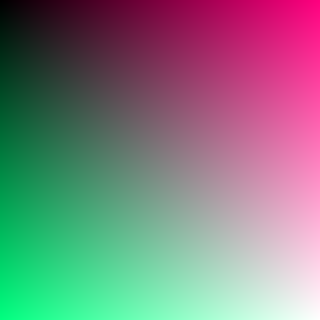
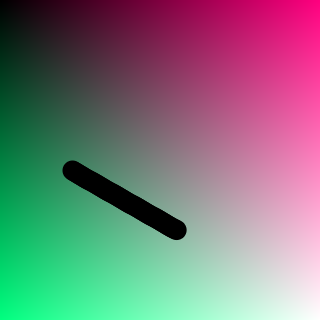
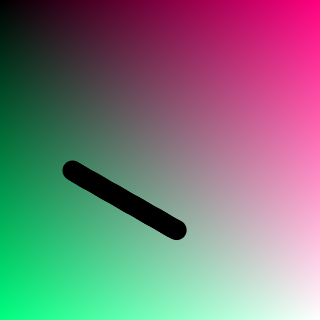
Download the original test PNG, edited PNG, saved PSD and reopened PNG. The test record identifies the version, dimensions and measured pixel difference. These are synthetic demonstration files, not client photographs. The PSD is an output from PhotoCraft, not a Photoshop-authored compatibility fixture.
Create a working directory and keep the original in a separate subfolder. Use a new filename for every save you intend to compare. Browser downloads can add suffixes when the same name already exists, so check the actual downloaded file rather than assuming the newest tab is using the newest version. For your own documents, preserve an untouched copy outside the browser before starting.
Open, edit and export the sample
Open the PNG workflow or the homepage editor. Wait for the application canvas to appear; the surrounding webpage loading is not enough. Drag the test PNG onto the editor canvas, or use the editor's File menu. Confirm that the document appears and that you are looking at the intended tab. Make one obvious brush mark away from the image edge. A clear change is easier to verify than a subtle adjustment.
Use the editor's PNG export command and inspect the downloaded image outside the canvas. Confirm its dimensions and that the mark is present. This exported image is your reference for the subsequent round trip. Comparing the reopened image only with the untouched original would confuse the intentional edit with a saving error. Our automated workflow checks that pixels actually changed before it evaluates reopening.
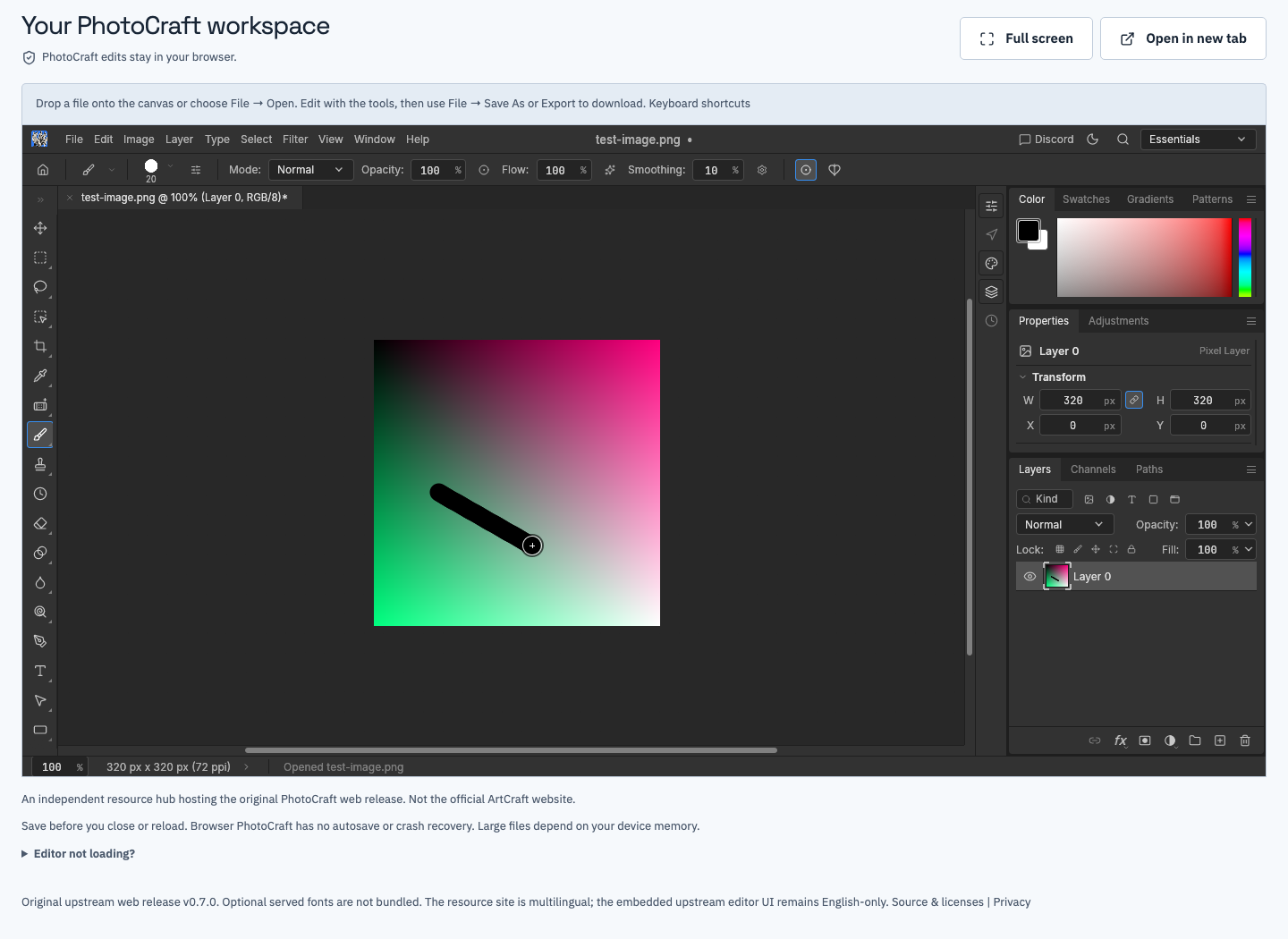
The browser workflow uses a visible edit before export. The editor interface is the upstream English interface.
Save a PSD and reopen it
Choose Save As from the editor's File menu and download a PSD under a new name. Check the download location and file extension. In our automated test, the output is also checked for the PSD signature and expected dimensions before it is reopened. A signature check confirms the file type; it is not a complete validator of all document structures.
Open the saved PSD in PhotoCraft and export a second PNG without making another edit. Compare this new export with the edited reference. The published test record reports the result for the supplied sample. Repeat the exercise with a copy of your own file before relying on it. A single passing sample cannot predict how a document containing fonts, masks, effects or imported objects will behave.
Compare appearance and editable structure separately
Appearance is the visible composite. Check document dimensions, transparency, layer visibility, edge detail and any areas where blending is important. A pixel comparison can reveal differences that are difficult to notice at a reduced zoom level. A screenshot of the editor is useful for documenting the process, but it includes interface scaling and is not a substitute for comparing exported image files.
Editable structure is a different question. Record the layers you expect, their order, names, masks and whether each element can still be edited as intended. A document can look correct while containing flattened or otherwise changed elements. Conversely, a small visual difference may come from rendering behavior rather than loss of all structure. Explain which observation you made instead of assigning a broad “fully compatible” label.
For a Photoshop handoff, the receiving application must be part of the test. Ask the recipient to reopen the saved file, inspect the composite and check the features they need to edit. We have not established that result with the supplied fixture. If you cannot run the destination application, record that part as unverified.
What this test does not establish
| Item | Evidence available here | What still needs testing |
|---|---|---|
| Small image import and brush edit | Actual browser workflow | Your file and device |
| PSD save and reopen in PhotoCraft | Downloaded sample and pixel comparison | Other document structures |
| Complex layers and masks | Not covered by this fixture | Structure and editing checks |
| Smart objects, text and effects | Not covered by this fixture | Feature-specific documents |
| 16/32-bit and color profiles | Not covered by this fixture | Controlled color workflow |
| Large PSB documents | No size-limit benchmark | Memory and output on your device |
| Photoshop reopening | Not part of this test | The actual receiving application |
Upstream documents PSD/PSB support, but support for reading or writing a format is not a guarantee of reproducing every effect. PhotoCraft remains early alpha. Large files can exceed browser memory, and increasing the file-format size limit does not increase the memory available to a browser tab. This guide publishes no universal maximum file size.
Record the results for your own document
Write down the source application, document dimensions, relevant features, browser version, operating system, PhotoCraft version and chosen renderer. Record each operation and save the intermediate exports. Mark an item “not tested” when you have no evidence. This is more useful than an overall compatibility score that hides the feature responsible for a failure.
When a difference appears, reduce the reproduction using a copy: identify the smallest document that still shows it, remove confidential material and repeat the same steps. Keep an example of the expected result. The community guide explains what to include in a useful report. Do not upload client documents to a public issue tracker without permission.
Read a pixel comparison correctly
Our comparison decodes each PNG into a browser canvas and checks all four RGBA channels. A pixel is counted as changed when at least one channel differs. Confirm matching dimensions before interpreting that count; comparing different document sizes is a different test. The intentional brush change is compared with the original first, then the reopened export is compared with the edited reference.
Pixel equality is not the same as identical encoded files. PNG compression or metadata can differ while decoded pixels match. Conversely, matching dimensions alone say nothing about the edited appearance. Keep the downloaded files and the comparison method together. This browser-canvas check also does not independently validate color-profile interpretation across other viewers, display calibration or a print workflow. Those requirements need their own controlled checks.
Prepare a safer handoff
Deliver the editable file together with a reference PNG, the version used and a short list of anything the recipient must verify. Keep the original and intermediate checkpoints until the recipient confirms the result. If a required feature fails, use a workflow already verified in the destination application rather than repeatedly overwriting the only copy.
Before closing the tab, confirm that both files exist on disk and reopen at least one saved checkpoint. This browser build has no autosave or crash recovery. Undo history inside a running tab is not a backup. The saving and backup guide provides a repeatable checkpoint routine for longer editing sessions.