Edit a PNG in your browser: a complete workflow
Import, paint, export and inspect a local PNG using a reproducible PhotoCraft example.
The result you will make
This tutorial takes one local PNG through a complete browser editing workflow: open it in PhotoCraft, paint an obvious mark, export a PNG and inspect the file outside the editor. You will also save a PSD checkpoint so that an exported image is not your only remaining copy. The example uses our synthetic 320 × 320 test image and the pinned v0.12.0 WebAssembly release. It needs no account or image-upload service.
The purpose is a reliable small edit, not a claim that every image workflow is supported. Start with this simple example before opening a valuable document. The original editor interface is English even when the surrounding website is Chinese or Portuguese. Menu names below refer to the editor canvas, not the browser's File menu. The website loads GA4 and self-hosted Plausible for visit measurement; these services do not receive image contents or local filenames from the editing steps.
Prepare the files and workspace
Download the example PNG into a new folder. Keep an untouched copy and create a separate output folder. The example contains no personal material. If you substitute your own picture, use a duplicate and confirm that you have permission to edit it. Avoid beginning with a huge file: a small known sample helps distinguish a startup problem from a document-specific problem.
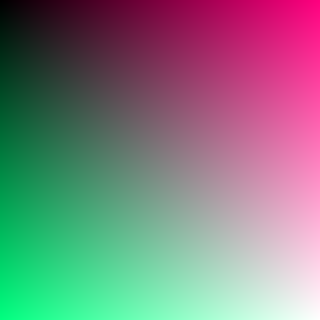
Open the homepage editor on a desktop-sized screen. Wait until the canvas and application menus are visible. The homepage title appearing does not mean the WebAssembly application has finished starting. If the workspace stays blank, follow the renderer troubleshooting guide before attempting repeated imports.
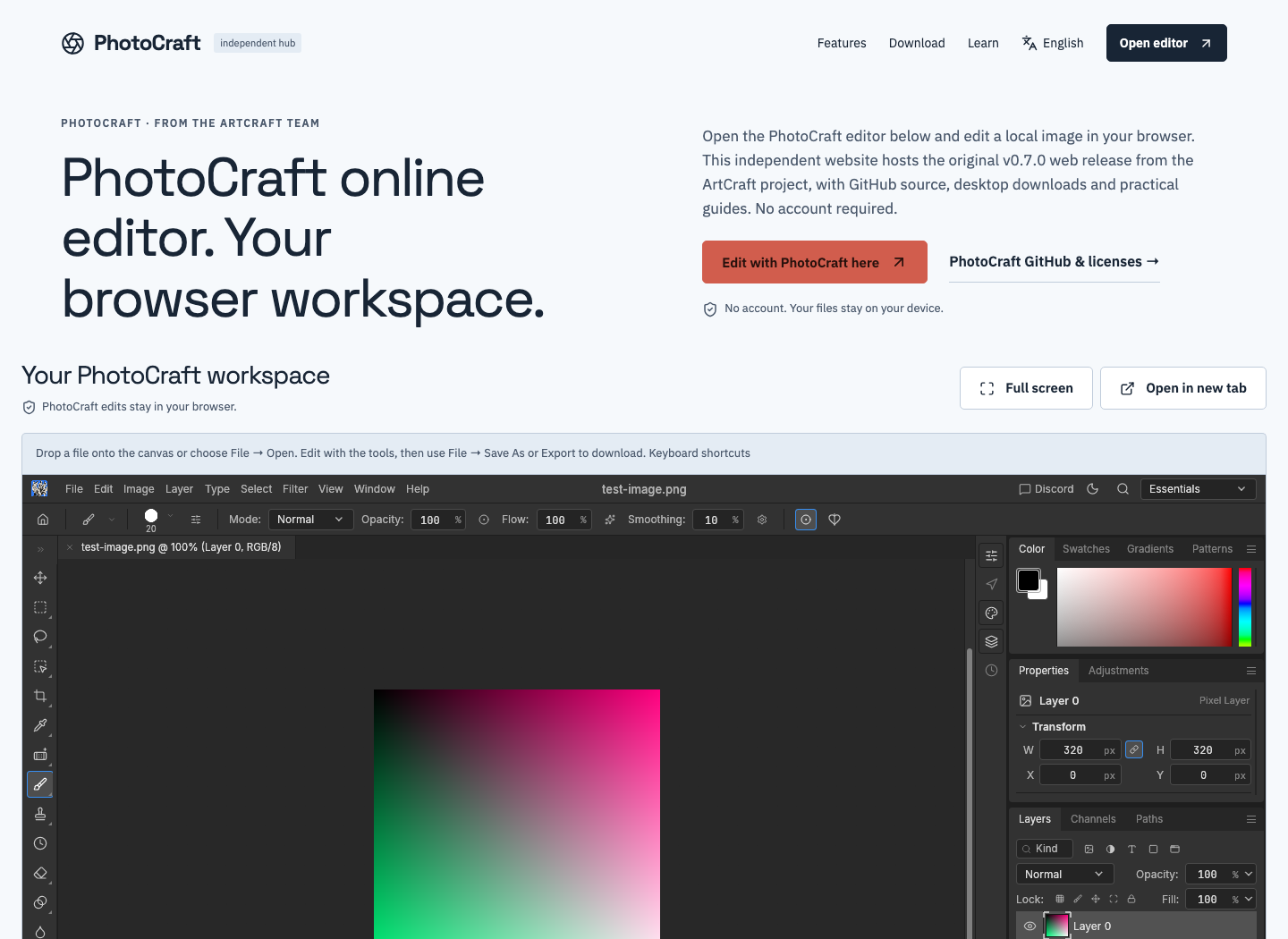
Start with the known sample so you can recognize the expected document.
Import the PNG into the application
Drag the downloaded PNG onto the application canvas. Drop it inside the editor rather than the surrounding article or browser toolbar. Alternatively, use the application's File menu to select the local file. Confirm that the image appears as a document and that you are editing the expected tab. If a browser opens the image in a separate page, return to the editor and try the application menu instead.
Click inside the workspace before using keyboard shortcuts. Browser focus and editor focus are separate. On a small display, panel controls can reduce the space available to the image; use the surrounding panel toggle or a larger screen if necessary. A successful narrow-screen test does not mean touch editing is equally comfortable on every device. The original canvas interface was designed around desktop-style controls.
Make a change that is easy to inspect
Select a brush using the editor's tools and paint a short, clearly visible stroke in the middle of the example. Choose a color that contrasts with the nearby pixels. For this first exercise, avoid working at the image boundary or making a tiny low-opacity mark. The goal is to recognize the change in both the application and the downloaded output without guessing.
If no mark appears, check the active document, selected tool and whether the pointer is actually over the canvas. Undo the last operation through Edit if the result is wrong, then try again. Do not assume that a changed-looking cursor proves that pixels changed. Our automated test verifies the exported pixels precisely because displaying controls alone does not demonstrate a working edit.
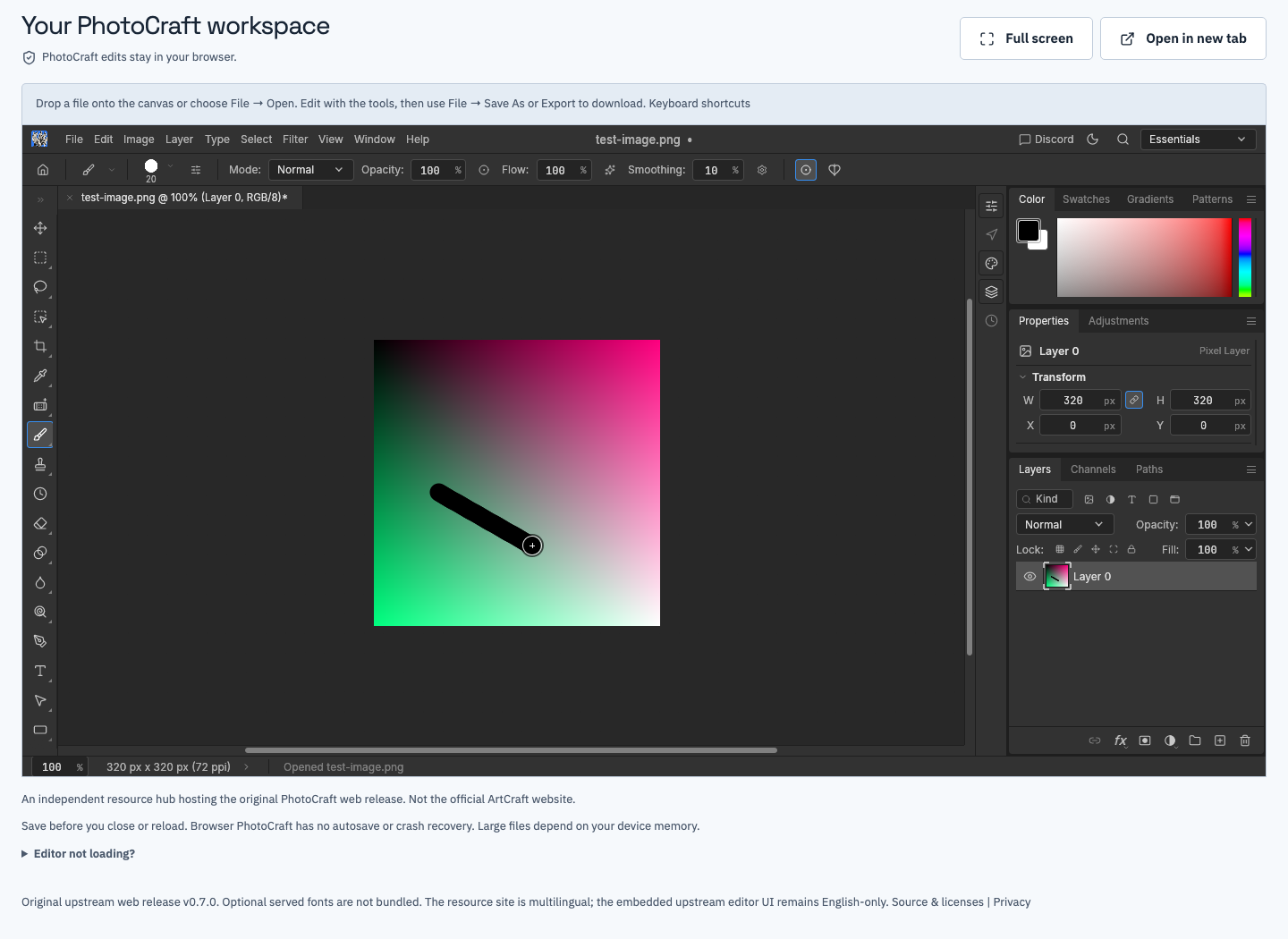
An obvious mark makes an incorrect or stale export easier to detect.
Export a PNG and check the download
Use the editor's File menu and its PNG export command. Wait for the browser download to finish, then locate the actual file on disk. Browser download policies, prompts and duplicate filenames vary. If a file with the same name already exists, your browser may append a number. Check the timestamp and open the correct output instead of relying only on its displayed name.
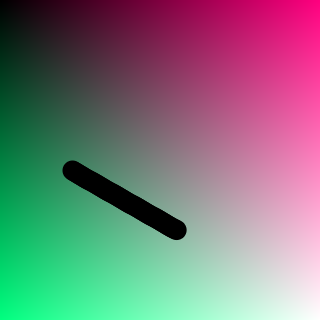
Open the export in a separate image viewer. Confirm that the mark is present and that the image dimensions remain 320 × 320 for this example. A screenshot of the canvas is not the exported image: it includes interface scaling and may contain panels or page chrome. Inspect the PNG itself. You can compare it with the example edited output, but a manually painted stroke will naturally differ from our automated stroke.
Save an editable checkpoint as well
A PNG is a rendered image, not a promise to preserve the complete editable document. Use the editor's Save As command to download a PSD under a distinct checkpoint name. Keep the source PNG, the saved PSD and the final exported PNG together. This naming convention makes each role clear: original input, working checkpoint and delivery image.
Reopen the PSD in PhotoCraft before depending on it. Export a second PNG and compare it with your edited result. Our published round-trip record covers this small workflow. Read the PSD support guide before extrapolating to complex layers, fonts or a Photoshop handoff. Saving a file with a PSD extension is only the beginning of a compatibility check.
Common problems and what to check
| Symptom | First check | Safe next step |
|---|---|---|
| The browser opens the PNG as a page | Where the file was dropped | Use the editor's File menu |
| A shortcut saves the webpage | Focus is outside the canvas | Cancel and use the application menu |
| The exported picture looks unchanged | Active document and downloaded filename | Make a clear mark and export a new name |
| No file appears in the expected folder | Browser download prompts and history | Find the completed download before continuing |
| The workspace becomes blank | Browser startup or graphics failure | Save when possible, then use the troubleshooting guide |
Do not refresh the tab as the first response to uncertainty. This build has no autosave or crash recovery. If the canvas still responds, save a checkpoint before changing renderers, reloading or leaving. If it no longer responds, preserve any files already downloaded; the site cannot recover an unsaved document from a server copy.
Finish with a repeatable handoff
Your completed folder should contain the untouched source, an edited PNG and a checked PSD checkpoint. Open the final PNG one last time and verify the intended change, dimensions and filename. Share only the files needed by the recipient, and explain which is the reference image and which is intended for further editing. Keep your own copies until the handoff is accepted.
The practical success criteria are simple: the original remains intact, the exported pixels show the change, and a saved checkpoint can be reopened. Those checks provide more confidence than seeing an editor load. For longer sessions, continue with the backup workflow; for the wider limits of this version, read the browser review.