Everygen Tutorial: Make AI Videos and Images Step by Step
An independent, hands-on walkthrough of everygen.ai: what it is, what it costs, how the video and image generators work, and how to finish Everygen output in a free browser editor.
photocraft.tools maintainer · Updated
Open the editor and try this workflow ↗What Everygen is, in one paragraph
Everygen is a commercial web studio for generating short videos, images, voiceovers and ad creative with AI models. According to its own homepage, it bundles models such as Seedance 2.5, Kling 4.0, MiniMax H3 Max, Grok Imagine, Gemini Omni 1.1 Flash and Nano Banana Pro, organized around tools the site calls the Wizard (a "Creator Agent"), AI Editing, a Video Generator and an Image Generator. The service was previously known as Viewmax; the homepage title itself reads "Everygen AI (formerly Viewmax)". It is a paid, account-based product — unrelated to this website.
This is an independent tutorial maintained by photocraft.tools. We are not Everygen, not affiliated with it, and not its official documentation. Everything described below was checked by hand on 15 November 2026; pricing and features can change after that date.
What we actually opened and checked
To keep this guide honest about its evidence: we visited the public pages of everygen.ai in a Chromium browser on macOS, recorded the screenshots used on this page, inspected the MCP connector page and its connection dialogs, and read the pricing page as a signed-out visitor. We also verified that the old viewmax.io addresses redirect to everygen.ai (see the Viewmax to Everygen migration guide).
What we did not do: create a paid account or generate billable videos. Steps that happen after sign-in describe the flow the site publishes and what its interface shows, not a generation we ran. Treat those parts as orientation, and check the credit cost shown in the product before confirming a paid generation.
Before you start: account and pricing
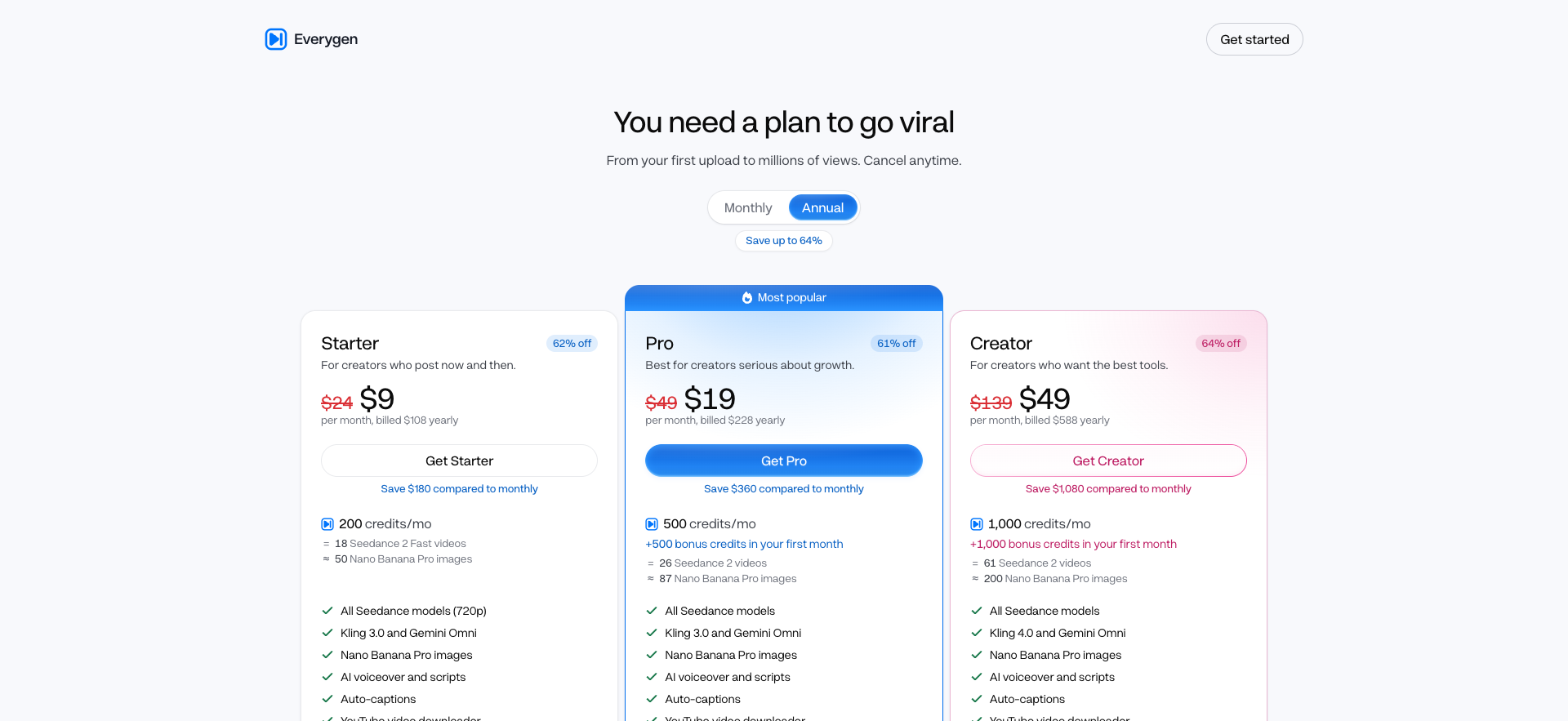
Everygen requires an account; the header offers a "Get started" sign-up route. The public pricing page (wrapped in a Cloudflare verification widget when we loaded it) showed a monthly/annual toggle and, on the annual view:
- Starter — advertised at $108 billed yearly (the page showed a struck-through monthly figure around the $9 range; the exact monthly price you see may differ), including 200 credits per month. The page equated that to roughly 18 Seedance 2 Fast videos or about 50 Nano Banana Pro images.
- Pro — a higher tier marketed as "Most popular", with more capacity and features such as 4K video and Kling 4.0 that Starter explicitly excludes.
Credits are therefore the metering unit: each model and resolution consumes a different number of credits, and the starter math above gives you a sense of scale. Confirm current prices on the official pricing page before subscribing; we do not track Everygen price changes here.
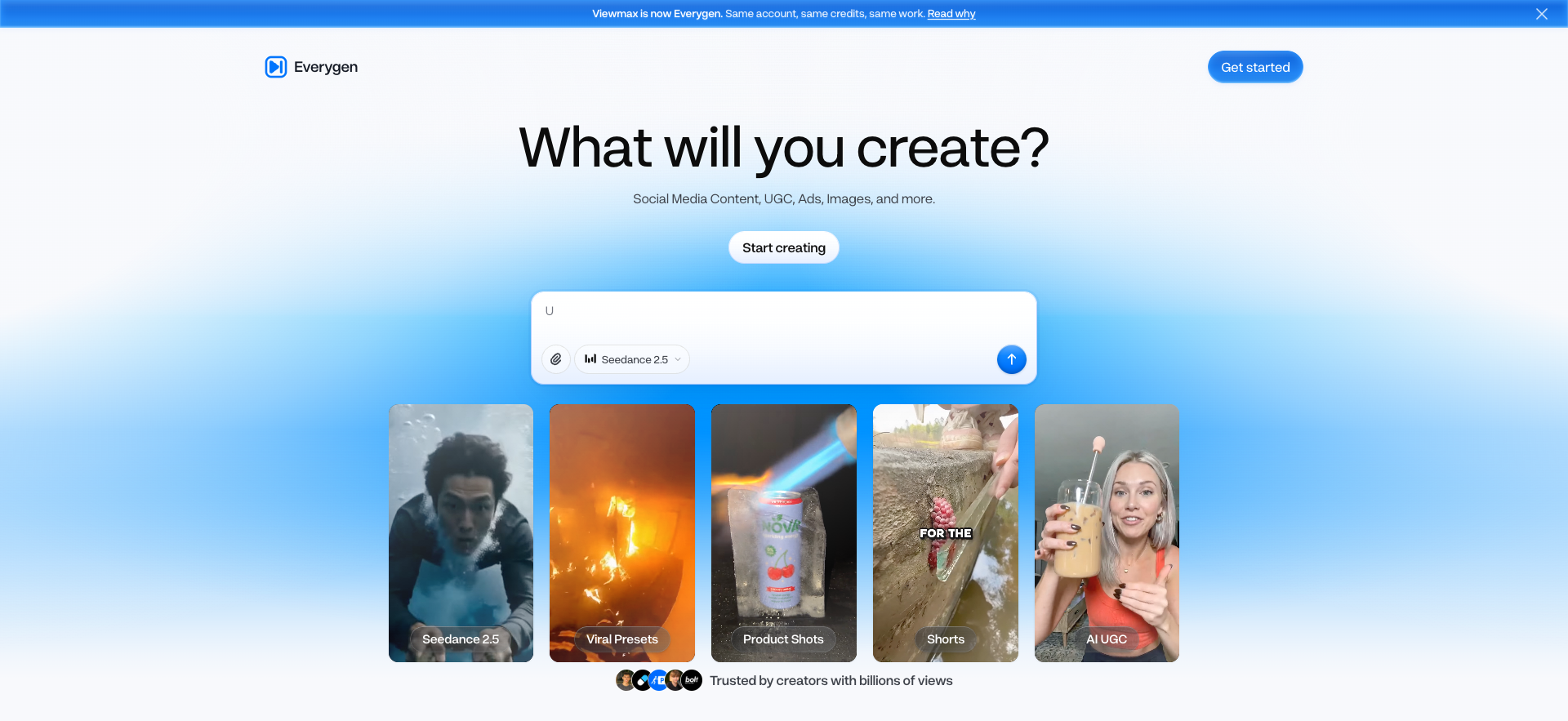
The home screen and the tool list
The homepage presents a single "What will you create?" prompt with entry points for social-media content, UGC and ads, plus a model ticker. After sign-in, the app sidebar (visible on the MCP setup page even as a visitor) lists the working tools: Home, Wizard, AI Editing, Video Generator, Image Generator, MCP, a Prompt Library, your projects and a Learn section.
For a first session, the Image Generator is the cheapest place to learn the interface, and its output is where a free image editor like the one on this site becomes useful. The next two sections walk both.
The image generator interface, as a visitor sees it
Opening the Image Generator tool shows a prompt box ("Describe the image you want to generate…") and a row of concrete controls. When we opened it without signing in, the visible options were:
- Add reference image — attach an existing picture to steer the result.
- Image model — defaulted to Nano Banana 2 in our visit.
- Aspect ratio — defaulted to 9:16 (vertical, for shorts).
- Resolution — 1K at the time of viewing.
- Number of variations — 1.
- An Advanced image settings disclosure with further options.
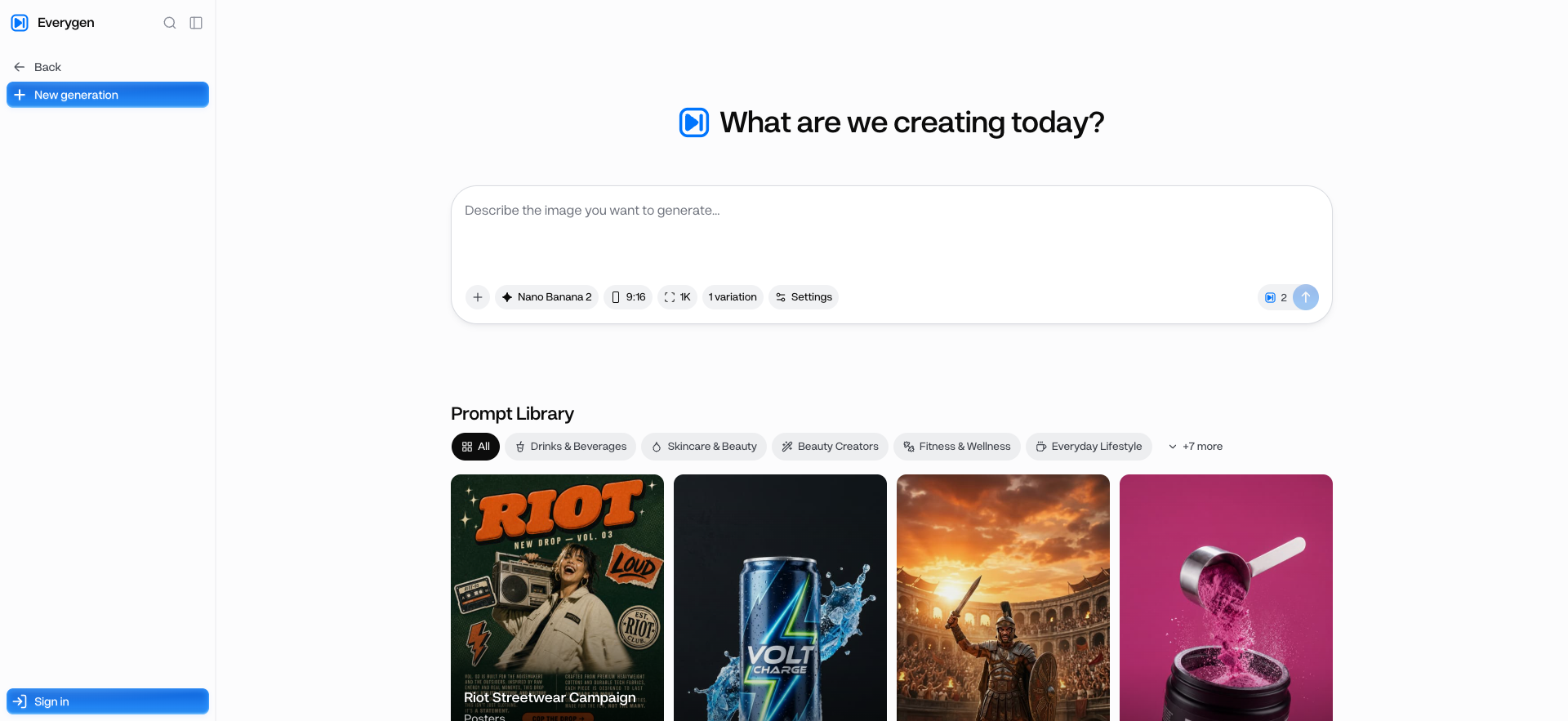
The working procedure the interface implies: write a concrete prompt (subject, style, framing), optionally attach a reference image, pick the aspect ratio that matches your target platform, then submit. After sign-in, the same screen reports the credit cost before you confirm a paid generation — read that number first; it is the ground truth, not any figure quoted in a tutorial.
If you are new to prompt-driven image tools, start with one variation of a simple subject at 1K. Iterate on wording before raising resolution or variation count, because credits scale with those settings.
Ordering a video
The Video Generator follows the same shape: a prompt, a model selector (Seedance 2.5, Kling 4.0, MiniMax H3 Max, Grorok Imagine and Gemini Omni 1.1 Flash were listed on the homepage), duration and aspect settings. Video generations cost more credits than images — the starter plan's "≈18 videos" math implies on the order of ten credits per short clip, varying by model and length.
A practical first video: one short vertical clip, one model, no reference, a prompt describing a single continuous action. Longer, multi-shot concepts are easier to burn credits on; the site's own example library (product hero films, cinematic scenes, faceless stories) is useful for seeing what one prompt can and cannot deliver before you spend anything.
Everygen also publishes an MCP route that lets Claude, ChatGPT or Cursor order generations for you; that is a separate setup we document in the Everygen MCP guide.
Finish what you generate in a free browser editor
Generated stills often need one more pass: a crop for a different platform, text on top, a color tweak, or assembling a title card. That finishing step is exactly what the editor on this site does — free, with no account, and without uploading your picture anywhere:
- Open the PhotoCraft browser workspace.
- Drop the generated image onto the canvas (File → Open or drag-and-drop).
- Crop to the target ratio with the manual crop workflow, or mirror and compose with flips and layers.
- Export a PNG and reopen it elsewhere to verify, following the PNG export checklist.
This is the full loop we recommend: generate with a credit-based service, finish with free local editing. The beginner tutorial covers the editing half in about ten minutes, and the editing examples page shows measured, reproducible results for each operation.
Frequently asked questions
Is Everygen free to use?
No. Everygen is a paid subscription product with credit-based generation.
Check the official pricing page for current tiers; this site has no insight
into free trials that may exist at any moment.
Do I need an Everygen account to follow this tutorial?
You can explore the public pages and see the generator interface as a visitor,
but generating requires an account and a plan. The screenshots on this page
show both states.
What happened to Viewmax?
Viewmax rebranded as Everygen. The old viewmax.io domain now redirects to
everygen.ai. The migration guide
covers old links, accounts and the MCP endpoint in detail.
Can I edit the images Everygen generates without paying again?
Yes. Download the generated image and finish it in any editor you already own — including the free, no-account browser editor on this site, which runs locally in your browser.
Is this the official Everygen tutorial?
No. This is an independent guide by the maintainer of photocraft.tools, based
on public pages checked on 15 November 2026. For authoritative answers, use
Everygen's own documentation and support.