Everygen MCP Setup: Claude, ChatGPT and Cursor
Connect the Everygen MCP server to Claude, ChatGPT or Cursor with the verified connector URL, follow the per-client steps we tested, and learn what the MCP tools can generate.
photocraft.tools maintainer · Updated
Open the editor and try this workflow ↗What the Everygen MCP server does
The Model Context Protocol (MCP) lets an AI assistant call external tools in a standardized way. Everygen publishes an MCP server so that a chat client — Claude, ChatGPT or Cursor — can order videos, images and voiceovers on your behalf, with the results delivered back into the conversation. On the official page the capability is described as OAuth-scoped per action, so connecting grants only what you approve.
This guide is maintained by photocraft.tools and is not official Everygen documentation. Everything below was verified by opening the public pages of everygen.ai in a Chromium browser on macOS on 15 November 2026. For the authoritative procedure, always fall back to the official MCP page linked from Everygen's site.
The connector address
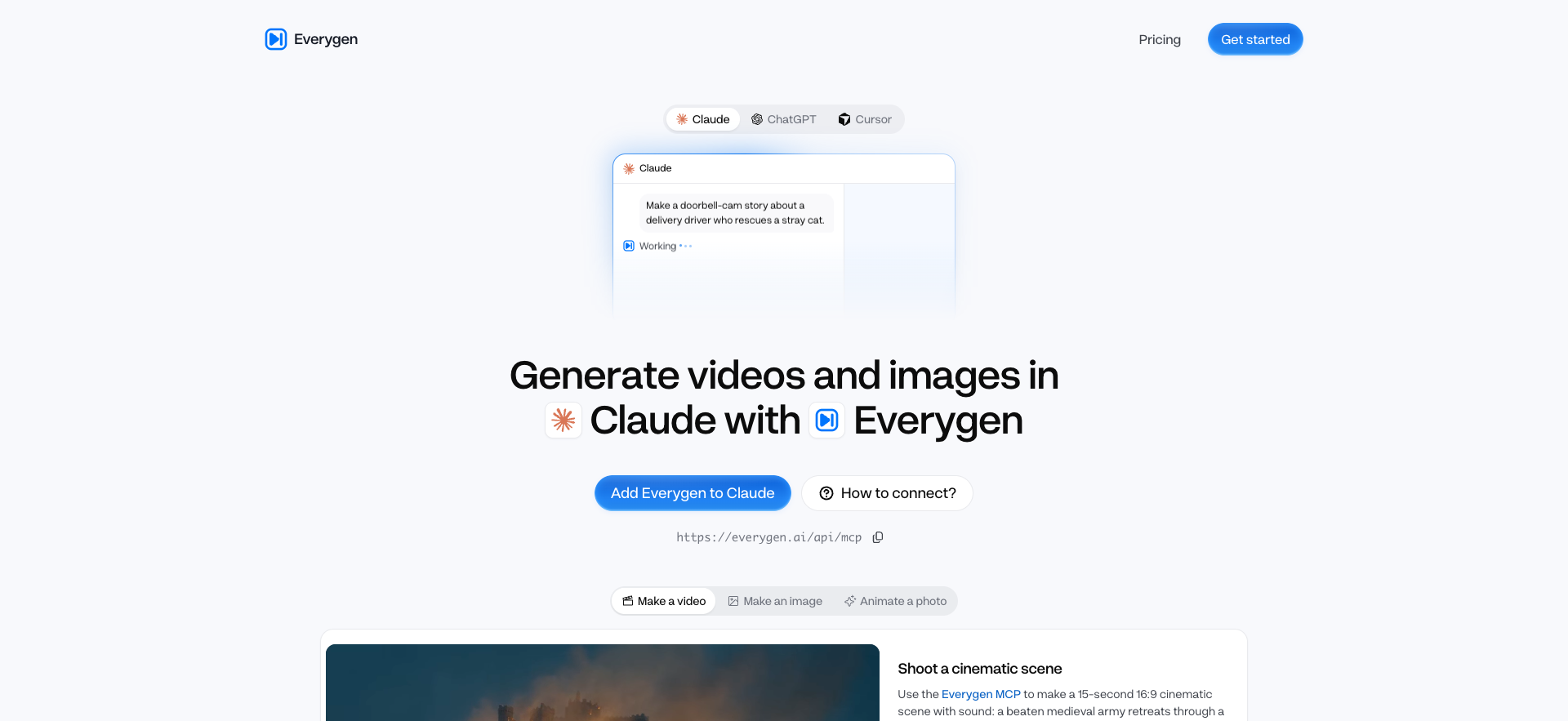
The MCP page shows a single connector URL, with a copy button:
https://everygen.ai/api/mcp
All three supported clients use this same endpoint. The page also offers one-click entry points that pre-fill the client for you, which is the easiest route — the buttons carry the URL and a connector name so you do not have to type anything.
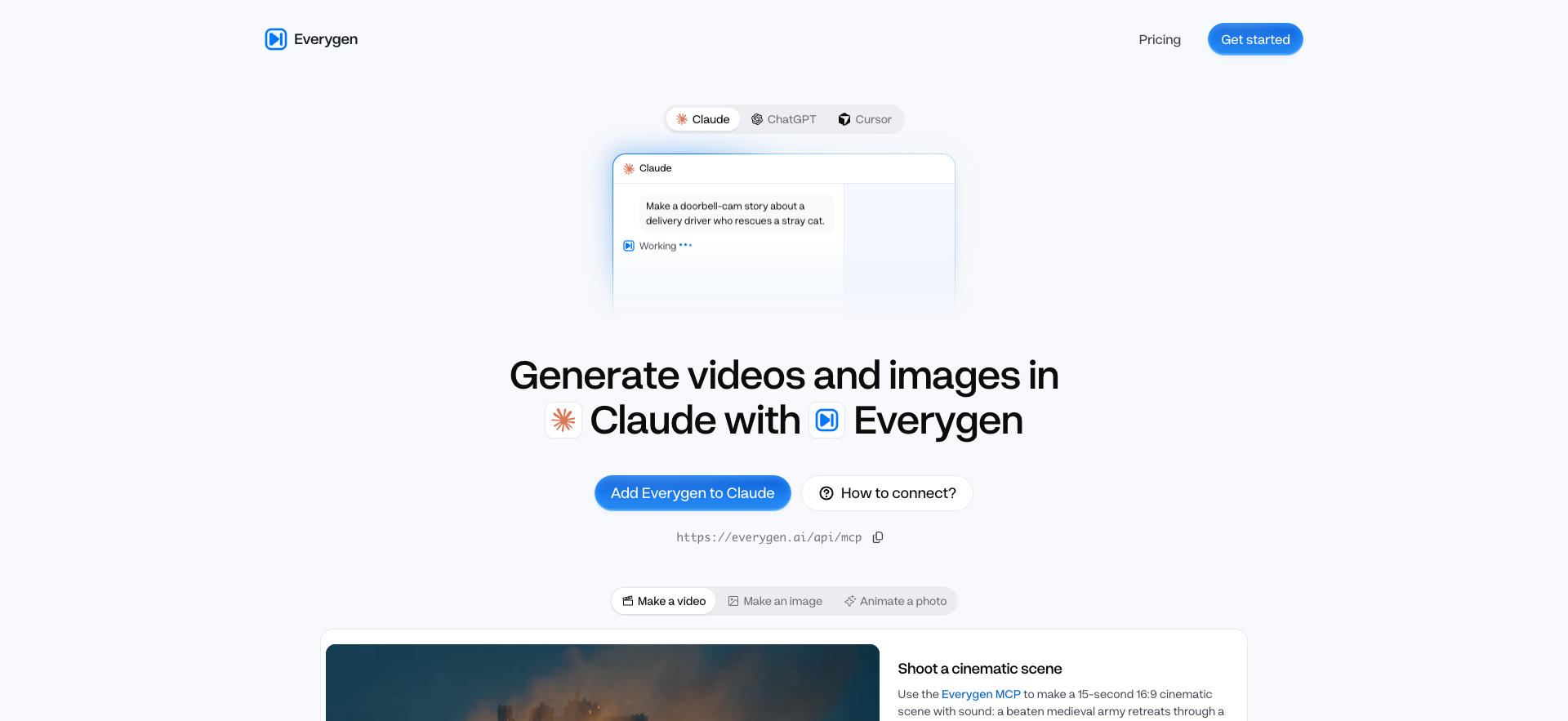
Connect Claude
The connection help dialog on the official page reduces the Claude setup to two steps, and both are visible without an Everygen account:
- Add the connector. The "Add Everygen to Claude" button opens Claude's connector settings with the name and URL pre-filled. Confirm with Add, then Connect.
- Sign in and create. Approve the Everygen OAuth sign-in when prompted, then simply ask Claude for an image or a video in any chat.
Connect ChatGPT
For ChatGPT the dialog directs you through the plugin directory:
- Open Everygen's entry in ChatGPT's plugin directory (the official page's button links straight to it) and click Add.
- Sign in to Everygen and ask for what you want.
The directory route means ChatGPT manages the connection as a plugin rather than a raw custom connector.
Connect Cursor
For Cursor, the dialog's button uses a cursor:// deep link that opens an install prompt inside the editor:
- Click Add Everygen to Cursor on the official page; Cursor opens with an install prompt. Confirm Install, then Connect.
- Sign in to Everygen in your browser (not inside Cursor), then ask Cursor for an image or a video.
One detail worth knowing, because we verified it while writing this guide: on 15 November 2026 the Cursor deep link's embedded configuration decoded to https://www.viewmax.io/api/mcp — the old Viewmax domain. That address still responds (see the migration guide), so installs should keep working, but if a connection fails, re-add the connector using the current everygen.ai/api/mcp address shown on the official page. Legacy addresses after a rename are exactly the kind of thing that gets cleaned up quietly.
What you can ask for
The MCP page organizes ready-made examples into categories — popular, UGC & ads, image generation, faceless stories, cinematic, and captions & editing — with copy-paste prompts. Examples we read on the page include:
- Shoot a cinematic scene — a 15-second 16:9 clip with sound, described shot by shot.
- A hero film for your product — a ten-second vertical one-take around a product bottle or sneaker, labeled with the Seedance 2.5 model.
- Make an image / animate a photo — stills and photo animation as separate tabs.
Each generation consumes Everygen credits under your account, exactly as it would on the website. The MCP route changes where you type the prompt, not the pricing.
Try MCP from both ends
If MCP-style tool integration interests you beyond generation, this site documents its own MCP server for the PhotoCraft editor: the PhotoCraft MCP guide covers installing and driving a local image editor from an AI client. A practical split many creators will enjoy: let Everygen's MCP produce a first still or storyboard frame, then do the precise cropping, lettering and layer work yourself in the free browser editor — the editing tutorial takes about ten minutes.
Frequently asked questions
Does connecting Everygen MCP cost extra?
The MCP connection itself is free to add, but every video or image it
generates consumes credits under your Everygen plan, exactly like the website.
Which clients does Everygen MCP support?
The official page shows Claude, ChatGPT and Cursor, each with its own connect
flow. Any other MCP-capable client may work with the generic connector URL,
but only the three above are documented.
Is the old viewmax.io MCP address still valid?
When we checked on 15 November 2026, the Cursor install link still embedded
the old viewmax.io endpoint, and that address still responded. Treat
everygen.ai/api/mcp as the canonical URL and re-add the connector if a legacy
configuration stops working.
Can the MCP client edit images too?
Everygen's MCP is documented for generating videos, images and voiceovers. For
editing, use a dedicated editor — the free browser editor on this site runs
locally with no account.
Is this official Everygen documentation?
No. It is an independent, verified walkthrough by photocraft.tools. Names and
procedures can change; the official MCP page is authoritative.